Meter / Meter Pro / Version 1.0.2
User manual.
The complete illustrated guide to the displays, measurement tools, Setup menu, activation and troubleshooting.
This edition includes Setup → Updates: manual checking, optional daily notifications and hiding a release. Free version 1 updates install manually and retain your activation. Existing 1.0.0 users must install 1.0.2 once to receive future notifications.
01 / Welcome to Meter
Meter combines analogue-style VU meters, digital level metering, frequency analysis and a stereo field display. Meter and Meter Pro add loudness measurements and more detailed analysis. The Windows standalone application and VST3 plug-in use the same measurement engine.
This manual covers version 1.0.2 and all three editions. Screenshots show Meter Pro; controls unavailable in your edition may be hidden. The host may list the plug-in as DJL Meter even though the display shows Meter or Meter Pro.
Meter is an analyser. It passes audio through without changing gain, limiting peaks, correcting phase, equalising resonances or normalising loudness. Use your DAW or other processors to make changes, then measure again.
Release scope: Windows 10 or later, 64-bit, mono or stereo. There is no current surround, macOS, iOS or Android release. True peak is displayed as an estimate. Standards-oriented targets are references rather than a certificate that a delivery meets every broadcaster requirement.
Publisher: Quantum Leap Design Group Limited trading as DJ Leslieson. Website: djleslieson.com. Manual prepared 23 October 2026.
How to use this manual
Choose Setup > Online manual in Meter or Meter Pro to open this guide in your default browser. The same guide covers the VST3 and standalone application. If the browser cannot open, the app shows the manual address so you can open it yourself.
Start with Installation and your chosen audio workflow. The display chapters explain each instrument. Setup reference lists selectable values; Reset and recall explains what survives a project reload. The contents entries are clickable.
02 / Choose an edition
| Facility | Free | Meter | Pro |
|---|---|---|---|
| Stereo VU, peak bars, spectrum, stereo field | Yes | Yes | Yes |
| Fixed all-meters layout | Yes | Yes | Yes |
| Loudness, target delta, LRA and crest tools | - | Yes | Yes |
| PPM DIN and K-20 / K-14 / K-12 modes | - | Yes | Yes |
| Focus views and numerical correlation | - | Yes | Yes |
| Stereo persistence outline | - | Yes | Yes |
| File scanning and CSV reports | - | Yes | Yes |
| Spectrogram view | - | - | Yes |
| Band phase / mono-loss and resonance detection | - | - | Yes |
| Persistent issue flags and issue history | - | - | Yes |
Both executable formats use the same edition entitlement in the current release. A companion window belongs to the running plug-in instance; it is different from launching the standalone application. Paid formats are not currently separated by the licence implementation.
Meter Free is a permanent basic metering edition. Meter adds the measurement and workflow tools. Meter Pro adds diagnostic views and detection. Detection identifies candidates for investigation; it does not establish that a musical sound is faulty.
03 / Installation and updating
Install step by step
1. Close Meter and DAWs that have loaded its VST3. Run the supplied 64-bit Windows installer. Read the licence agreement and tick the agreement box to continue.
2. Select the VST3 plug-in, standalone application, or both. Set each installation root separately. The installer adds DJL\Meter below each root.
3. Finish installation. Start the standalone app or rescan plug-ins in your DAW. The unlicensed product opens as Meter Free. Import a paid licence through Setup to unlock Meter or Pro.
| Selection | Example result |
|---|---|
| VST3 root: C:\Program Files\Common Files\VST3 | C:\Program Files\Common Files\VST3\DJL\Meter\DJL Meter.vst3 |
| Standalone root: C:\Users\YourName\AppData\Local\Programs | ...\Programs\DJL\Meter\DJL Meter.exe |
Paths and maintenance
The VST3 is installed as a single .vst3 file. Do not create a Contents directory or move internal files into a bundle. If using a custom root, make sure your DAW scans that root or its subfolders.
To update, close loaded copies and run the new installer. Keep your original licence file and project backups. To remove the software, use Windows Installed apps or the supplied uninstaller. Customer-created files and activation data may remain.
At the time of this manual, publisher code signing is awaiting identity validation. Check the supplied download source and release information. A signed Meter licence file unlocks an edition; it is separate from a Windows publisher signature.
04 / Free version 1 updates
Setup > Updates
Version 1.0.1 introduced update notifications. If you are using 1.0.0, install 1.0.2 manually once to receive notices about later free version 1 releases. Meter and Meter Pro use the same installation and update process.
Check for version 1 updates checks immediately. Notify me of free version 1 updates switches automatic checks on or off. Automatic checks run in the background at most once a day while a paid editor is open. Free can check manually.
When a newer version 1 release is available, a small Free update notice appears in the header. Select it to open the installation guide after confirmation. Nothing downloads or installs automatically. Hide this version’s update notice dismisses that release; a later release can still be shown.
Close the standalone application and any DAW using Meter before updating. Run the latest installer with the same components and folders, or replace the existing VST3 using the ZIP. Your existing activation and paid edition are retained. Keep only one Meter copy in scanned folders.
Privacy and offline use
The check reads a public release file over HTTPS. It does not send licence keys, email addresses, audio, device identifiers or your current version. Your notification preference is stored locally, separately from DAW projects.
Offline automatic checks fail quietly and do not interrupt audio or licensing. You can check again manually when connected. Only newer stable version 1 releases are offered as free updates; future paid major versions are excluded.
Current downloads and installation guide: www.djleslieson.com/plugins/meter/install. Read this manual online: www.djleslieson.com/plugins/meter/manual.
05 / Quick start: VST3 in a DAW
Measure the signal you intend to hear
Insert DJL Meter on a mono or stereo track. For final mix checks, place it near the end of the Main/master processing chain, after processors whose effect you want to measure. Meter only receives the audio routed to its insert position.
In Ableton Live, enable the relevant VST3 scan location in the plug-in settings and rescan if needed. Find DJL Meter in the browser and add it to the intended track. Start playback and check both peak bars respond.
Select the paid loudness target in Setup if needed. Click Reset immediately before the passage or full song you want to measure. Play it once from beginning to end; repeated playback contributes to the same capture until Reset.
Use VU for average musical energy and gain staging, sample peaks for digital headroom, spectrum for frequency balance and stereo field for channel relationships. In paid editions, inspect integrated loudness and true-peak estimate after the pass.
Use Pause to suspend live measurement while leaving the audio path active. Resume continues the capture. Stopping a DAW transport does not automatically reset the integrated measurement.
Keep the display visible
Enable the Companion window checkbox. It opens a separate meter window for this instance and can remain visible as you select other tracks. It still measures the original insert. The companion is always on top and hands over from the original floating host editor where it can be identified safely. Closing it restores that editor where available; docked or unrecognised host windows are left visible.
Save the DAW project to retain settings and the companion preference. Save CSV results separately if you need a measurement record.
06 / Quick start: standalone
Choose an audio input
Launch DJL Meter.exe. Use the standalone wrapper audio/device settings to select an available Windows driver, input device and channel pair. ASIO can be useful with a compatible interface. Choose the sample rate and buffer size supported by the device.
The app measures its selected input. To measure another application, route that application to a physical loopback input or a suitable virtual audio device and select that input in Meter. It does not automatically hear every Windows application.
Play a known signal and confirm left/right activity. If nothing moves, check the source, driver, channel assignment, device access and routing before changing detection settings. Avoid routing Meter output back into its own input.
Live input versus files
Live metering needs a working audio input. Paid Scan file reads a supported file directly and does not need that file played through the input. Scan file and Export CSV are also available inside the paid VST3; they are not exclusive to standalone.
Allow the audio driver to settle before resetting and beginning a capture. Higher buffer sizes can improve reliability on a busy system. The instrument display may lag a transient because its analysis windows require incoming samples.
07 / The complete workspace
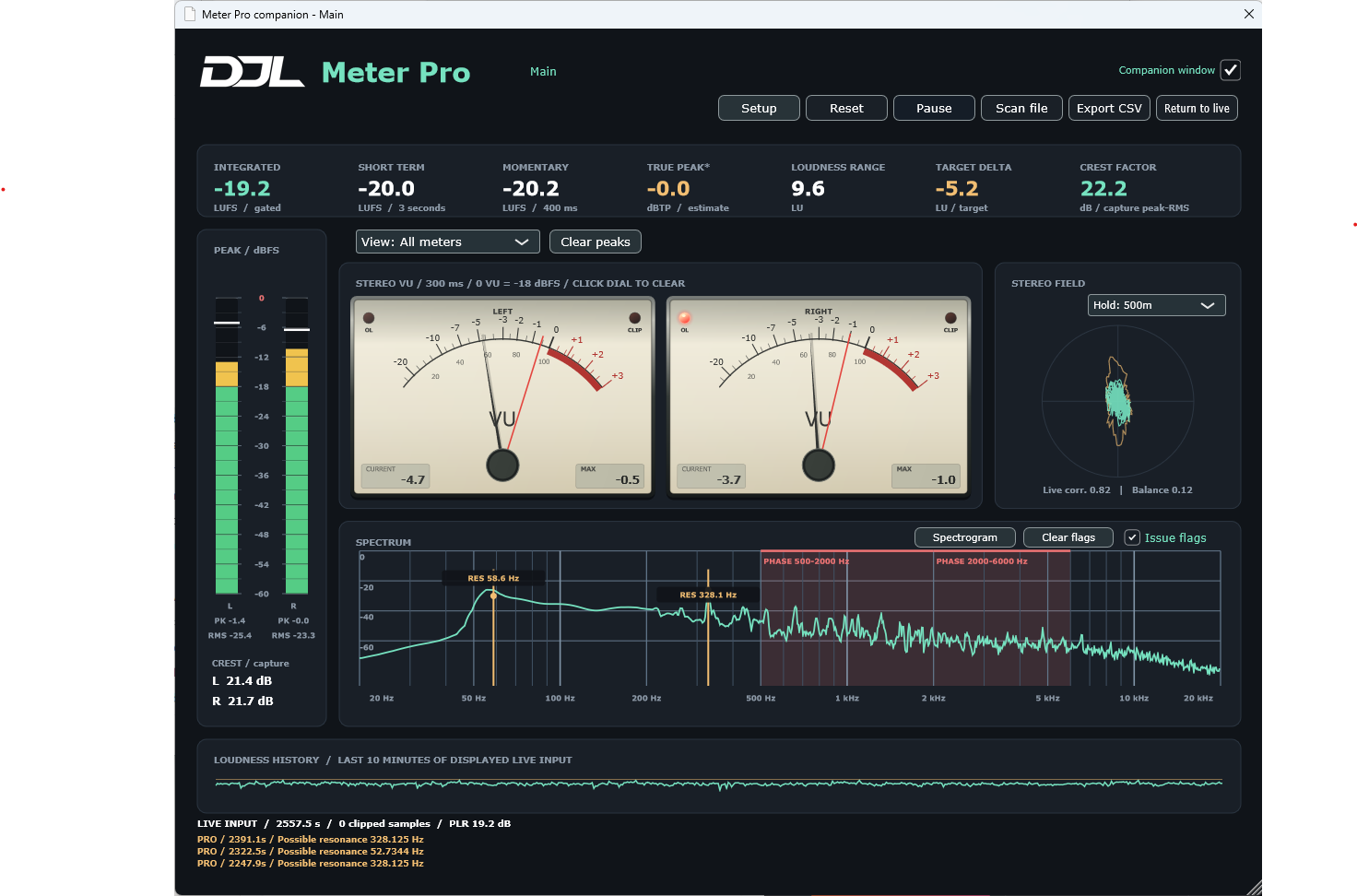
Figure 1. All meters in Meter Pro. Other editions show a subset of these controls and readouts.
| Area | Purpose |
|---|---|
| Header and toolbar | Edition, track label, companion, Setup and capture commands. |
| Top readouts | Paid programme loudness, peak estimate, range, target and crest. |
| Left column | Channel level bars, sample peak/RMS values and crest. |
| Centre and right | VU dials and stereo field, or a selected focus view. |
| Spectrum panel | Frequency balance; Pro can show a spectrogram and issue flags. |
| Bottom history and status | Recent live loudness, capture state and the last three messages. |
08 / Toolbar, track label and views
| Control | Operation |
|---|---|
| Setup | Opens measurement, display, licence, Updates, Online manual and About options. |
| Reset | Begins a fresh measurement state; clears captures, histories and flags. |
| Pause / Resume | Suspends or resumes live analysis. Audio continues to pass. |
| Scan file [paid] | Opens an audio file for background analysis. |
| Export CSV [paid] | Writes the currently displayed results to a CSV snapshot. |
| Return to live [paid] | Leaves the file result and displays live measurements again. |
| View [paid] | Selects All meters, VU, Spectrum or Stereo field focus. Pro adds Pro detection and Spectrogram. |
| Clear peaks | Clears VU maximum needles and their OL/CLIP indicators. It does not restart loudness. |
| Companion window | Opens/closes the separate window attached to this instance. |
Track name and resizing
Meter uses the host-provided track name and updates it when available. A Windows host-window caption can provide a fallback. If the host supplies neither, double-click the label to enter a manual name. Automatic naming support varies with the host.
The normal window is resizable. Focus views give the selected instrument more room while retaining the left level column and paid summary readouts. Meter Free keeps the fixed all-meters arrangement.
09 / Loudness, headroom and targets
| Readout [paid] | Meaning |
|---|---|
| Integrated (LUFS) | Gated loudness accumulated over the current capture. Uses an absolute -70 LUFS gate and a relative -10 LU gate. |
| Short term (LUFS) | Loudness over approximately 3 seconds. |
| Momentary (LUFS) | Loudness over approximately 400 milliseconds. |
| True peak* (dBTP) | Maximum estimated reconstructed peak for the capture, rather than the current peak. |
| Loudness range (LU) | Loudness variation. Marked provisional while the capture is shorter than 60 seconds. |
| Target delta (LU) | Integrated loudness minus the selected target. |
| Crest factor (dB) | Capture maximum sample peak minus combined capture RMS. |
Read the numbers in context
A target of -14 LUFS and an integrated result of -19.2 LUFS produce a delta of -5.2 LU. This says the measured programme is below the reference. It does not instruct Meter to add gain and does not prove that adding 5.2 dB would be safe.
Streaming preview (-14), EBU R128 (-23), ATSC A/85 (-24) and Custom select a target reference. They do not change your audio or implement a complete platform-delivery rule set. Streaming playback behaviour can depend on service, content and playback settings.
A dash means a value is unavailable, gated out or waiting for sufficient samples. Short-term and range results need time to become useful. A 60-second LRA result is not a compliance certificate.
10 / Peak bars and crest factor
Read body, marker and numbers separately
In Sample peak mode, the bar body follows the recent 100 ms sample peak. Green is below -18 dBFS, yellow spans -18 to -6 dBFS, and red spans -6 to 0 dBFS. Entering the red zone is a headroom indication, not automatically digital clipping.
The white horizontal marker attacks immediately, waits for its selected hold, then falls at the selected dB-per-second rate. It turns red at 0 dBFS or above. A short transient can raise the marker while the bar body falls back; the gap is expected.
Grid lines occur every 3 dB and extend over the bars. Numeric labels use wider spacing. PK is the capture maximum sample peak. RMS in the default mode is the recent unweighted RMS value; it is not the bar-body detector.
| Quantity | What it answers |
|---|---|
| Moving peak marker | How high was a recent instantaneous sample peak? |
| PK number | What was the greatest sample peak since Reset? |
| RMS number | What is the recent average signal energy? |
| L/R crest / capture | How far is each channel capture peak above its capture-wide RMS? |
Crest example
A steady sine has a peak about 3.01 dB above its ordinary RMS. A transient-rich signal usually has a higher crest factor. The per-channel capture crest combines the greatest peak anywhere in the capture with RMS over the whole capture, so it is not a moment-by-moment compression meter.
11 / VU dials, peak needles and lights
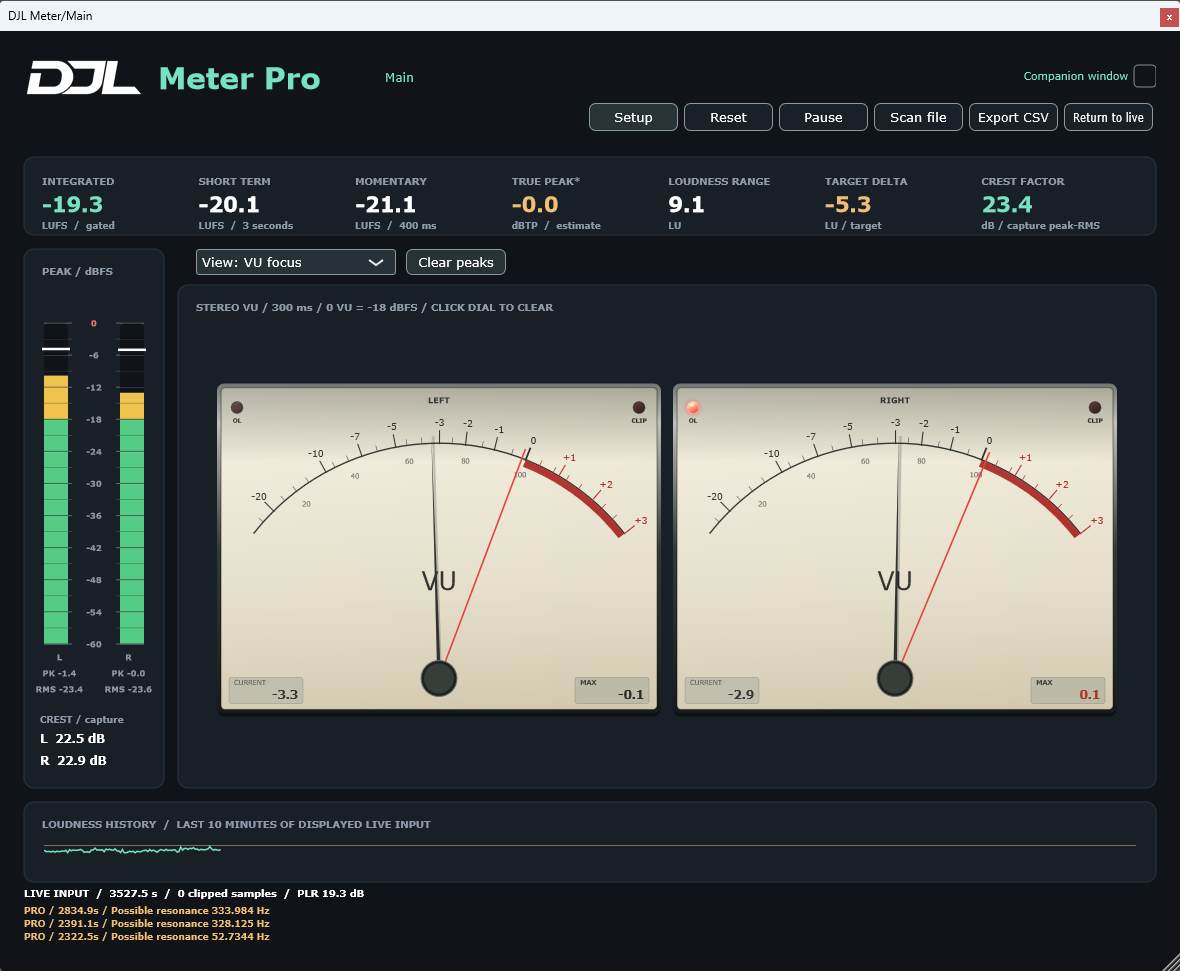
Figure 2. VU focus. The black needle is the live VU level; the red needle is its peak follower. The right OL indicator is active.
The VU detector uses full-wave average response with approximately 300 ms rise to 99% and a small analogue-style overshoot. VU is neither a raw peak detector nor a literal RMS meter. Short transients can pass well above the level implied by its black needle.
CURRENT follows the black needle. MAX follows the red VU peak needle. The red needle captures the VU detector maximum, not the raw waveform peak. Its release and pre-release hold are user selectable. Numeric values can exceed the drawn +3 VU scale.
OL normally means above 0 VU; Setup can instead make it respond to digital clipping. CLIP always indicates a sample reaching or exceeding 0 dBFS. Over 0 VU can be normal with headroom remaining. Click either dial or Clear peaks to clear both VU peak needles and lights.
12 / VU calibration and ballistics
Set the reference
The default reference is 0 VU = -18 dBFS for the sample peak of a steady sine. Select an integer reference from -24 to -8 dBFS in Setup. A steady 1 kHz sine at the reference level should settle near 0 VU. This is an electrical signal reference, not a calibration of loudspeaker sound pressure.
| Setting | Values and effect |
|---|---|
| VU peak release | 500m, 1S, 2S, 4S, 8S, or Hold until cleared. Finite times describe a 24 dB fall. |
| VU peak hold before release | No hold, 0.25, 0.5, 1, 2 or 5 seconds. |
| OL / CLIP sustain | 0.25, 0.5, 1, 2 or 5 seconds, or Hold until cleared. |
| OL trigger | Above 0 VU, or digital clipping. |
Hold and release are different
Hold is the waiting period after a peak before the red needle starts to fall. Release is the falling speed. For example, a 1-second hold followed by a 2-second release waits one second, then falls at 12 dB per second. A 6 dB fall therefore takes about half a second.
Choosing a finite release resets the pre-release hold to No hold. If you want both, choose the release first and the hold second. Hold until cleared prevents automatic falling. The default is a 2-second release with no pre-release hold.
Finite LED sustain flashes and then expires after the latest trigger. Repeated overloads retrigger it, which can look like a persistent warning. The default sustain is one second. Hold until cleared keeps the light latched until cleared.
13 / PPM DIN and K metering
Alternative level modes [paid]
Select Level meter mode in Setup. These modes change the left bar body and its associated level interpretation. The sample peak marker and PK capture number remain sample-peak measurements in dBFS.
PPM DIN: quasi-peak response with a slower attack than instantaneous sample peaks. The implementation is approximately 2 dB below a steady reference for a 5 ms, 1 kHz burst, with a 20 dB return in 1.5 seconds. Read its body in dBFS. It is not a claim of IEC instrument certification.
K-20, K-14 and K-12: unweighted, AES17-normalised RMS, where a full-scale sine is 0 dBFS in the RMS convention. A 20 ms power window and roughly 600 ms amplitude settling smooth the display. The chosen reference is -20, -14 or -12 dBFS.
In K modes, ticks are relative to the reference. Green is below 0 dBr, yellow reaches +4 dBr and red is above +4 dBr. The scale changes the interpretation of headroom; it does not change the sound or your monitor volume.
Choose the appropriate tool
Use sample peak for digital transient headroom, VU for musical average level, PPM for quasi-peak behaviour, and K modes for a consistent RMS/headroom reference. LUFS uses frequency weighting and gating and should not be expected to match the unweighted K-mode number.
14 / Spectrum display
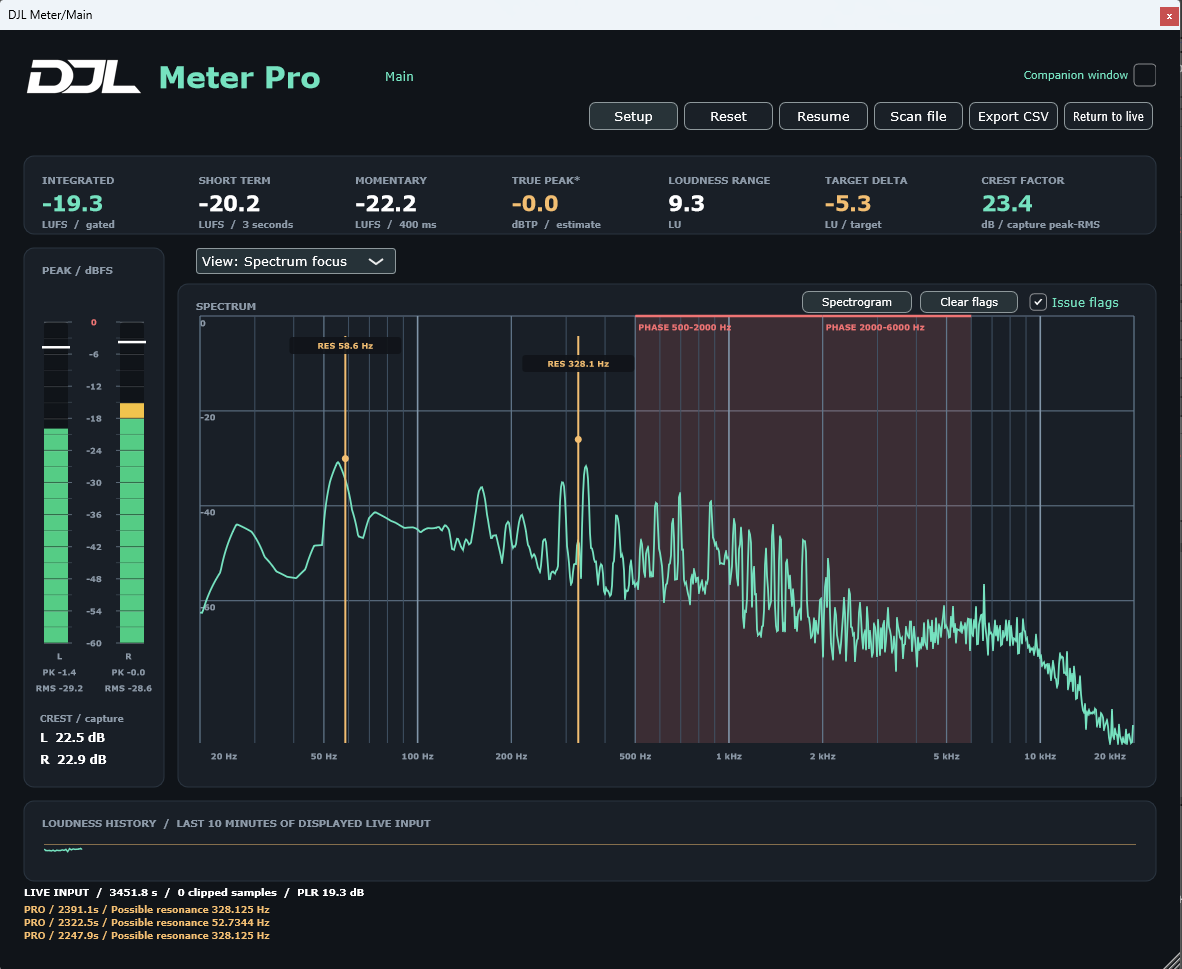
Figure 3. Spectrum focus, with amber resonance markers and red phase bands in Meter Pro.
The spectrum plots signal magnitude against logarithmic frequency, nominally 20 Hz to 20 kHz. Vertical grid lines help locate bass, midrange and treble features. The physical upper limit is also constrained by the sample-rate Nyquist frequency.
A 16,384-sample Hann-window FFT provides the analysis. At 48 kHz, bin spacing is about 2.93 Hz and one window spans 341 ms. At 96 kHz these become 5.86 Hz and 171 ms. Bin spacing is not the same as the ability to separate two close tones.
Stereo channels are combined as mean power, so opposite-polarity left and right material can remain visible in the spectrum even when it cancels in a mono sum. Display fall is fixed at approximately 36 dB per second.
The spectrum describes frequency content, not room acoustics by itself. A tall narrow musical note is not automatically a resonance defect. File results do not populate a full spectrum view in this release.
15 / Stereo field and persistence
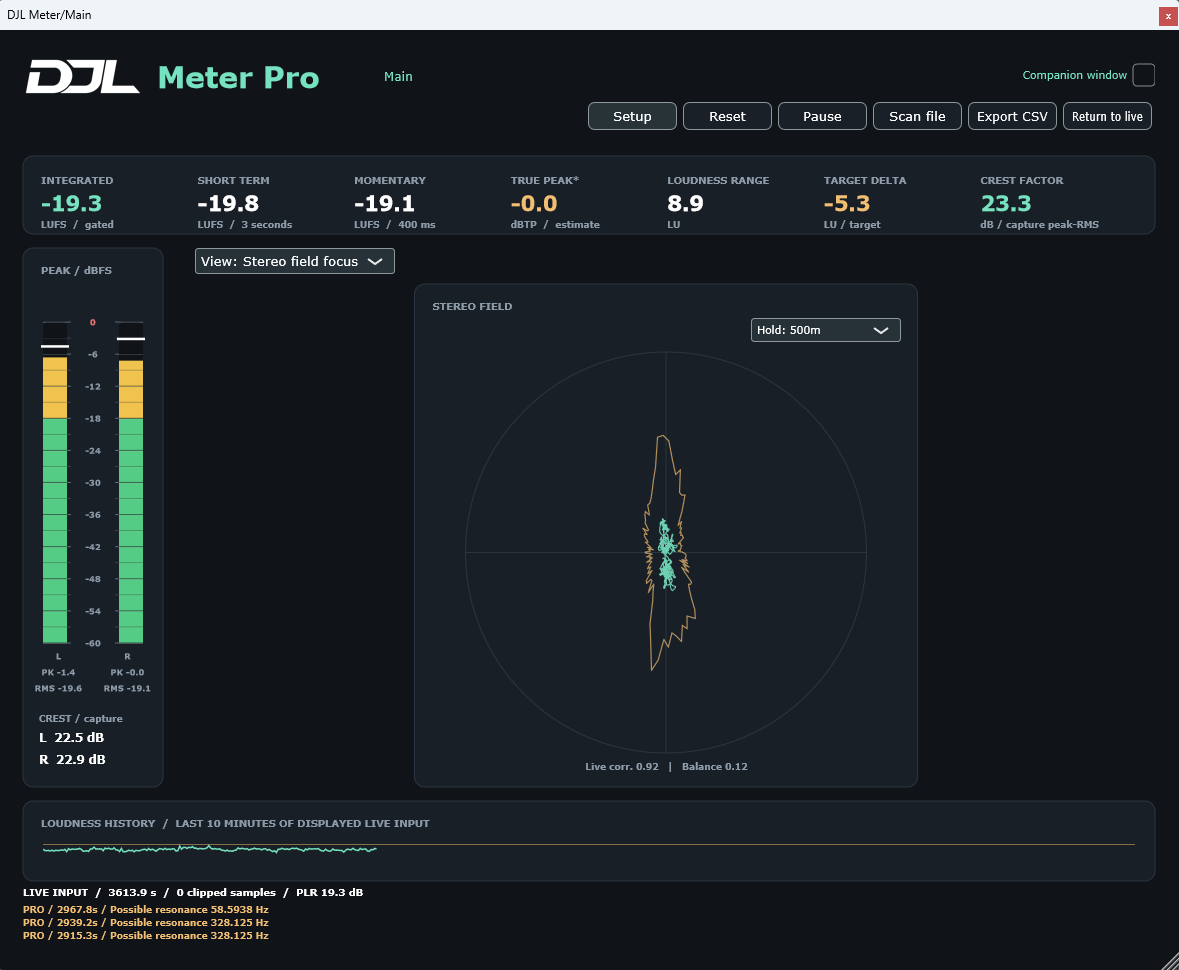
Figure 4. Stereo field focus. Mint is the current trace; amber is the recent maximum outline [paid].
The display plots Side horizontally and Mid vertically. Identical left/right signals tend towards a vertical line. Opposite-polarity signals tend towards a horizontal line. A wider shape indicates more channel difference, but width alone does not prove poor mono compatibility.
The live trace uses a short recent block. Paid persistence shows a maximum outline over the selected trailing duration, leaving the current trace visible. Select Off, 250m, 500m, 1S, 2S or 5S. Here m means milliseconds and S means seconds. Default is 1S.
Live corr. [paid] is a short analysis-window correlation. Balance is capture-wide channel energy balance: -1 is left, +1 is right and 0 is equal energy. These have different time bases. Balance is a measurement, not a pan control.
In file mode, File end corr. refers to the last analysed window. CSV correlation is capture-wide. Mono input does not provide a useful stereo phase assessment.
16 / Spectrogram [Pro]
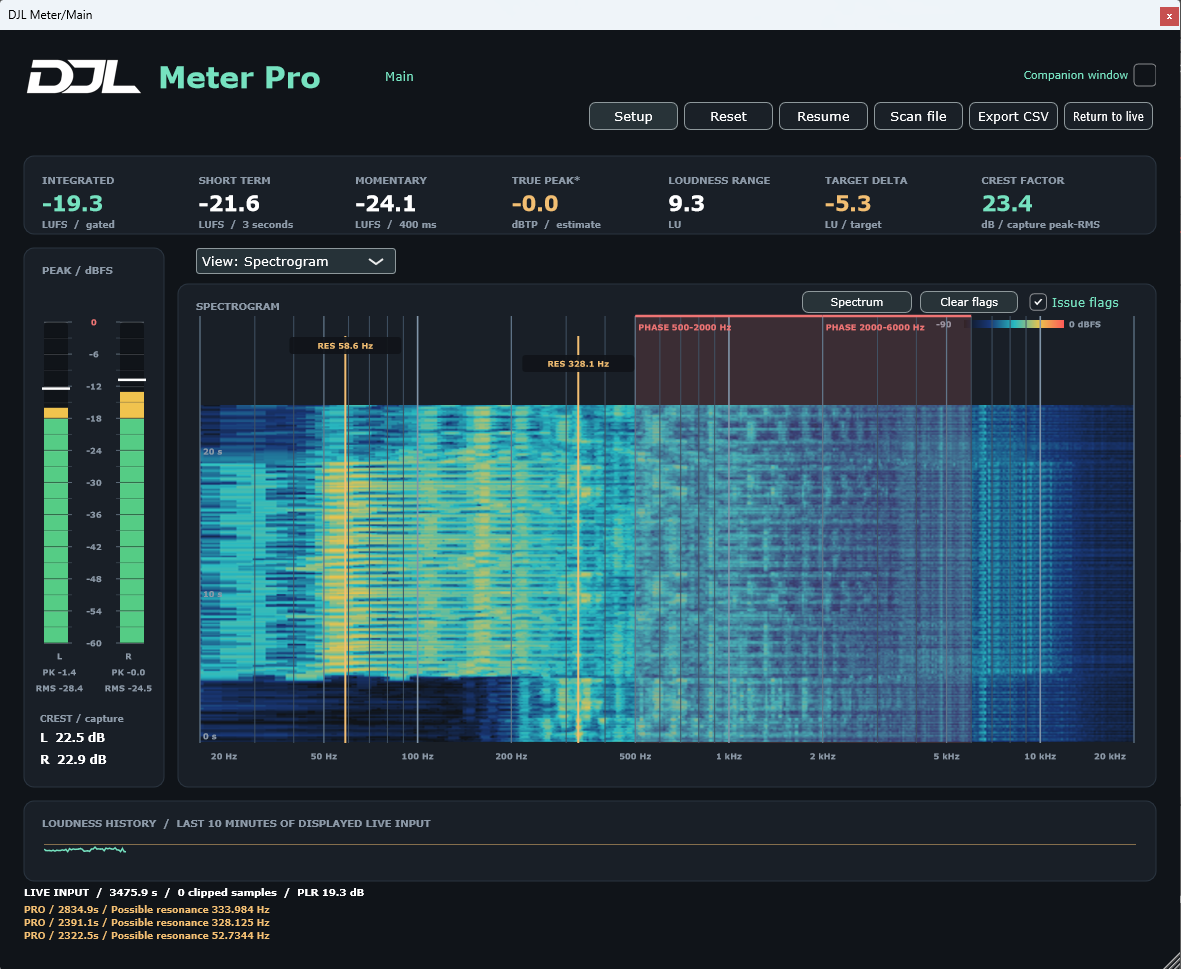
Figure 5. Spectrogram focus. Time runs down the display; the newest row is at the bottom.
The spectrogram shows how frequency content changes with audio time. It contains 512 frequency columns and up to 300 rows at 100 ms per row, representing about 30 seconds after the display fills. It uses the same 16,384-sample analysis size.
Colour represents magnitude on the displayed -90 to 0 dBFS scale: dark blue is low level, progressing through cyan and yellow towards red. Colour is not LUFS, and a bright row is not by itself an overload warning.
Click Spectrum/Spectrogram in the panel or select the Spectrogram focus view. Pause or stopped audio prevents new audio-time rows. Closing the editor, a continuity gap, sample-rate change or reset can clear local display history.
Issue flags can overlay this display. They refer to retained detections across the capture, not a precisely timed event at every coloured row. File scanning does not build a spectrogram in this release.
17 / Pro detection: phase and mono loss
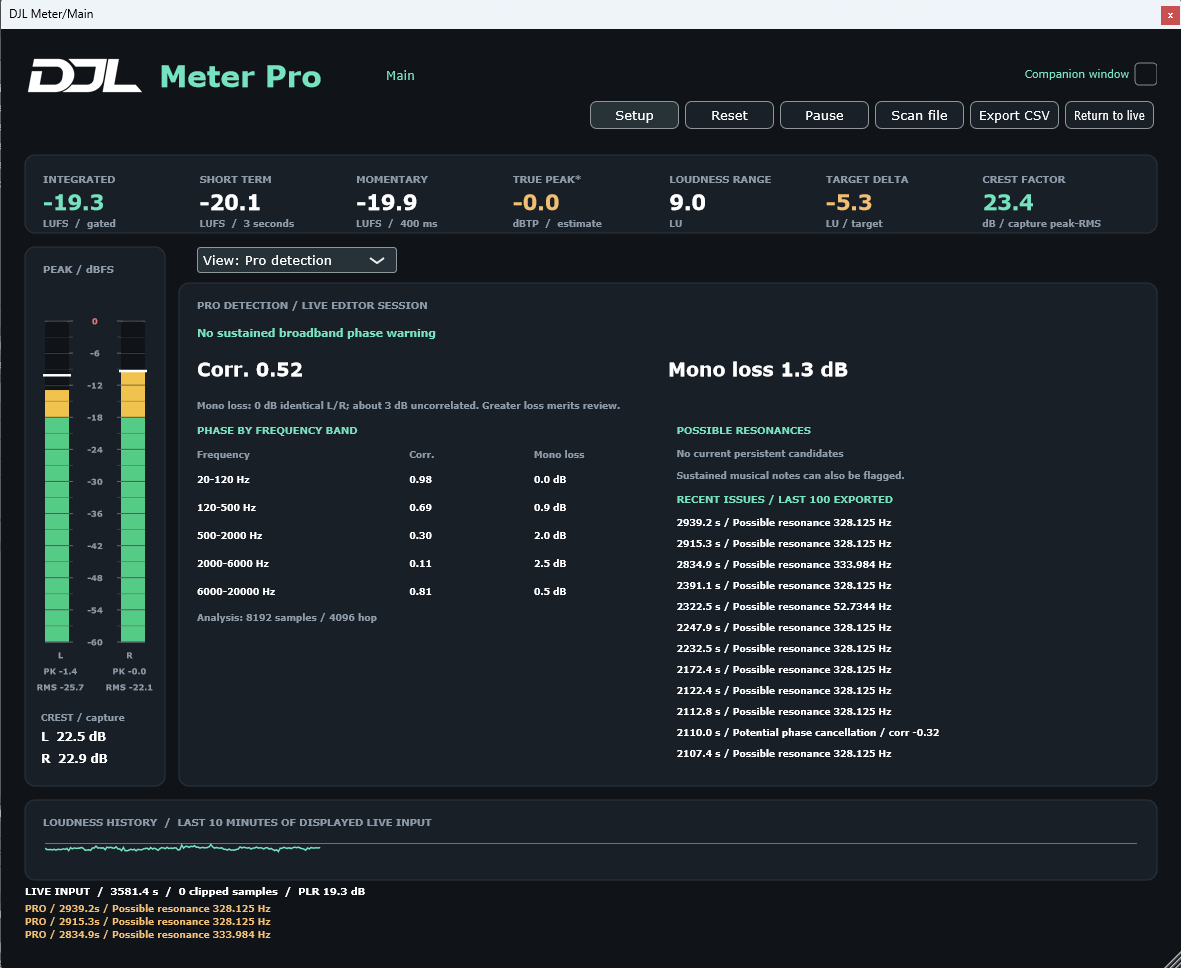
Figure 6. Pro detection shows current band measurements, possible resonances and recent issues.
Correlation describes the similarity of the two channels: +1 means identical, around 0 means uncorrelated, and -1 means opposing. Sustained negative correlation is flagged when it crosses the selected threshold for the selected duration.
Mono loss compares energy in the half-sum mono signal with mean stereo energy. Identical channels give about 0 dB loss, uncorrelated channels about 3 dB, and opposing channels can approach complete cancellation. The displayed extreme is bounded. There is no single pass/fail number for all music.
Frequency bands are 20-120, 120-500, 500-2000, 2000-6000 and 6000-20000 Hz. Quiet or unavailable bands show a dash. A global healthy reading does not rule out a problem in one band.
18 / Pro detection: resonance and flags
Possible resonances
The analyser looks for sustained local spectral peaks from approximately 30 Hz to 18 kHz. A candidate must exceed its nearby spectral background by the selected prominence and be sufficiently loud. The strongest current candidates are listed; sustained musical notes can also qualify.
The default prominence is 12 dB and duration one second. Raising either setting reduces sensitivity. Lower values find more candidates but can flag ordinary musical material. A label is an invitation to listen and compare, not an instruction to cut that frequency.
Retained spectrum markers
Issue flags enables or hides red PHASE bands and amber RES markers. Hiding them does not switch off detection or clear retained flags. Clear flags becomes unavailable while their display is disabled.
Clear flags removes the retained overlays and rearms their timing without erasing the issue history or restarting loudness. Reset clears the capture and histories as well. Retained markers are not restored from a saved DAW project.
History and continuity
Recent issues retains up to 100 events with a cooldown between events of the same kind. Export CSV includes this bounded Pro event history. The footer separately shows the last three warning/status messages.
Pro analysis requires an open editor or companion window. Its 8,192-sample windows overlap by 4,096 samples. At 48 kHz, a window spans about 171 ms; at 96 kHz, about 85 ms. Gaps invalidate continuity. Changing live detection thresholds restarts detector history and flags.
19 / File scanning and reports [paid]
Scan a file
1. Click Scan file and select a supported audio file. The chooser includes WAV, AIFF, FLAC, MP3 and Ogg; actual decoding depends on the built-in reader. Files must be mono/stereo at a supported rate from 44.1 to 192 kHz.
2. Wait for the background scan. Live audio continues to pass. The scan uses the detection settings at its start; changing settings later does not retroactively reanalyse the file.
3. Read the file summary. Loudness, sample peaks, crest and available Pro results describe the file. VU, live scope, full spectral history and spectrogram are not reconstructed from the scan.
4. Export CSV to keep a snapshot. Return to live restores the live source. For a completely fresh live measurement, choose Return to live and then Reset.
Important workflow details
Pause controls live measurement; it does not cancel the file-scanning worker. A failed/unsupported scan leaves a status message; a failed partial scan is not presented as a complete result. Closing the editor can cancel its scan.
Core live measurement can continue behind the file result. Return to live resets Pro/editor analysis continuity, but does not itself reset that core accumulated live capture. Reset while in file mode is not the same as leaving file mode.
The standalone app and plug-in both offer this paid workflow. An optional separately supplied command-line scanner is an advanced tool; it is not installed by the normal GUI installer.
20 / CSV field reference
CSV export records the displayed snapshot, not a continuously logged stream. Source names distinguish file and live results. Empty/unavailable fields should not be interpreted as zero. Use a spreadsheet import that preserves decimals and source text.
| Field group | Interpretation |
|---|---|
| Source / duration / target | Which source was measured, its analysed duration and loudness reference. |
| Integrated / short term / momentary | Loudness summary values in LUFS. Current windows differ from whole-capture results. |
| true_peak_estimate / sample peaks | Estimated reconstructed capture peak and channel sample maxima. |
| LRA / PLR / crest | Range, peak-to-loudness ratio where available, and peak-to-RMS crest. |
| Clipped / invalid samples | Counts observed by the analyser. Investigate source/routing if non-zero. |
| correlation / window_correlation | Capture-wide channel relationship versus the final/most recent analysis window. |
| DC and channel statistics | Channel bias, RMS and related scalar measurements. |
| Pro mono loss / event rows | Available cancellation measurement and the most recent bounded issue history. |
What the report does not contain
CSV does not contain FFT bins, a scope drawing, spectrogram pixels or the editor loudness-history series. It is not a rendered certificate. Include your source file, sample rate, settings and capture procedure when sharing results with another engineer.
PLR is true-peak estimate minus integrated LUFS. Crest compares sample peak and RMS. These are different measures and can differ substantially on the same song.
21 / Setup reference: metering
All main settings are collected under Setup; View remains directly accessible. Settings belong to the current instance. The following values describe release 1.0.2.
| Setting | Choices / default |
|---|---|
| Loudness profile [paid] | Streaming preview -14; EBU R128 -23; ATSC A/85 -24; Custom. |
| Loudness target [paid] | Integer values -36 to -5 LUFS. Default -14. |
| VU reference | 0 VU = -24 to -8 dBFS. Default -18. |
| VU peak release | 500m, 1S, 2S (default), 4S, 8S, Hold until cleared. |
| VU peak pre-release hold | No hold (default), 0.25 / 0.5 / 1 / 2 / 5 seconds. |
| OL trigger | Above 0 VU (default) or digital clipping. |
| OL / CLIP sustain | 0.25 / 0.5 / 1 (default) / 2 / 5 seconds, or Hold until cleared. |
| Peak marker hold | No hold, 250 / 500 / 1,000 (default) / 2,000 / 5,000 ms. |
| Peak marker fall | 6, 12 (default), or 24 dB/s. |
| Level mode [paid] | Sample peak (default), PPM DIN, K-20, K-14, K-12. |
Peak marker timing applies to the left bar marker. VU peak release applies to the red VU needle. OL/CLIP sustain applies to the indicators. Changing one does not imply the other instruments use the same timing.
22 / Setup reference: display and detection
| Setting | Choices / meaning |
|---|---|
| Stereo persistence [paid] | Off, 250m, 500m, 1S (default), 2S, 5S. Also accessible at the stereo display. |
| Phase correlation [Pro] | -0.1, -0.2 (default), -0.5. Threshold for sustained negative correlation. |
| Phase duration [Pro] | 0.25, 0.5 (default), 1, 2 seconds. |
| Resonance prominence [Pro] | 6, 9, 12 (default), 18 dB above nearby background. |
| Resonance duration [Pro] | 0.5, 1 (default), 2, 4 seconds. |
| Issue flag display [Pro] | Show/hide retained spectrum overlays. Detection remains active. |
| Licence | View entitlement; import a signed file or use configured activation. |
| Upgrade [Free / Meter] | Opens the product website. Availability depends on the published page and sales setup. |
| Updates | Check for version 1 updates; enable/disable notifications; hide an available release notice. |
| Online manual | Opens the complete illustrated manual in your default browser. |
| About | Version and release information, publisher and acknowledgements. |
Open Setup > Updates for the update controls described in Installation and updating. Edition-specific entries are hidden where inapplicable.
23 / Licensing and upgrades
Activate your paid edition
Meter starts in Free mode without a valid paid entitlement. Open Setup > Licence to inspect the active edition and licence status. A licence changes feature access; it does not change the audio signal.
If the publisher supplies an offline licence file, choose Import licence and select that signed .meterlic file. Standard Polar purchases provide a key for online activation. Keep any supplied offline file safe. A Meter licence unlocks Meter facilities; a Pro licence adds all Pro facilities.
For online activation, choose Setup > Licence > Activate online. Enter your purchase email and Polar licence key in the browser. A paid licence covers one named user on up to two active installations. Free needs no key. Keep your key private. To move an activation, deactivate on the old computer before activating the new one.
After activation or importing a licence, confirm the displayed edition. If needed, close and reopen the editor. For a wrong-product, damaged or unrecognised licence, keep the exact error text and contact the publisher. Never post your licence file or activation key publicly.
Upgrade opens the website for the next paid edition. Existing Meter owners verify their Meter key before buying the Pro upgrade using the same purchase email. Keep the original Meter key; after purchase, deactivate and reactivate online on each computer to refresh its entitlement to Pro. Purchase and payment occur outside the meter. Store availability, prices and format entitlements must follow the published purchase terms; this manual does not promise a particular future price.
24 / Reset, clear and save: reference
| Action | Result |
|---|---|
| Reset | Clears measurement capture, peak holds, crest/loudness accumulation, analysis history and warnings. Does not change audio. |
| Clear peaks / click VU | Clears both VU max needles and OL/CLIP. Does not restart integrated loudness or clear the bar PK capture. |
| Clear flags [Pro] | Clears retained spectrum overlays and rearms flag timing; retains issue history and loudness. |
| Pause | Suspends core live analysis. Does not stop audio or cancel a background scan. |
| Return to live | Leaves file result, restores live display and resets Pro/editor continuity. Core live capture is retained. |
| Save DAW project | Stores instance configuration and companion preference, not a measurement report. |
What recalls with a project
Saved configuration includes target/profile, VU reference, peak/LED timing, level mode, view, stereo persistence, issue-display preference, detection settings, manual label and companion preference. These are instance settings, not a universal global preset.
Loudness capture, peak/crest maxima, issue events, flags, FFT pictures, traces, spectrogram rows, transient messages and Pause state are not a saved measurement session. Export before closing if you need results retained.
The core processor can continue accumulating when the editor is closed. Pro analysis and visual-history collection need an editor or companion open. Reopening cannot reconstruct the missing visual analysis.
25 / Practical workflows
Gain staging and musical dynamics
Set a VU reference suitable for your production chain. Play a representative section and watch the black needle for average energy. Use sample peaks to check transient headroom. Compare crest before and after compression over equivalent reset captures; a lower crest often means less peak-to-average separation.
If the red VU needle stays high, inspect Hold until cleared and the pre-release hold before assuming the detector is stuck. Use a finite release for a moving recent-maximum indication.
Kick and bass investigation [Pro]
Place Meter after the point where kick and bass combine. Keep the editor/companion open, Reset, and play the problematic section. Inspect the 20-120 Hz band, mono loss, spectrum and possible resonance candidates. Then solo/compare stems and listen in mono using your DAW tools.
A stereo analyser cannot recover cancellation that already happened when two sources were summed into the same mono signal. A weak low end can be caused by source timing even when left/right correlation looks healthy. Use aligned comparisons and listening, not a single warning light.
Check a final file
Choose the target, scan the rendered stereo file, inspect integrated LUFS, true-peak estimate and clipped samples, then export a report. If a change is required, adjust the source mix or mastering chain and render again. Scan the final export rather than assuming the live project and encoded file are identical.
26 / Troubleshooting
| Symptom | Checks |
|---|---|
| Plug-in missing | Confirm 64-bit VST3 support, installed root and DAW scan path. Close old loaded copies, rescan and check the host blacklist. |
| No live signal | Check insert routing or standalone input channels, driver, device access, transport and Pause state. |
| Loudness shows -- | Allow enough audio time; check signal level and gating. Confirm a paid edition is active. |
| Peak bar below white line | Expected after transients: the marker has a separate hold and fall. |
| VU peak will not fall | Check Hold until cleared. Choose release first, then optional pre-release hold. |
| OL/CLIP appears persistent | The source may continually retrigger it, or sustain may be latched. Clear and watch a known lower-level signal. |
| No Pro warnings | Check active Pro entitlement, open editor/companion, signal energy, thresholds and minimum duration. |
| Flags remain after fault ends | Flags are retained by design. Use Clear flags or Reset. |
| No file spectrum/scope | This release scans scalar results and Pro issues; it does not replay a full visual history. |
| Wrong readings after file scan | Return to live, then Reset for a new live capture. |
| Crackle or missed visuals | Check audio driver, buffer size and system load. Analysis continuity can be lost on gaps. |
| Licence rejected | Use the original signed file for this product. Record the error and contact the publisher. |
27 / Technical reference and limits
| Item | Release 1.0.2 |
|---|---|
| Audio formats | Windows x64 standalone and VST3; matching mono/stereo input-output; no MIDI. |
| Signal path | Analysis only, no gain processing; zero reported plug-in latency. |
| Core level window | 100 ms recent peak/RMS in default sample-peak mode. |
| VU detector | Full-wave average; approximately 300 ms to 99%, small overshoot. |
| Spectrum / spectrogram | 16,384-sample Hann FFT; logarithmic frequency display. |
| Pro window / hop | 8,192 / 4,096 samples. |
| Spectrogram history | Up to 30 seconds, 100 ms per row; local display memory. |
| Loudness history | Up to 10 minutes of displayed live momentary results, approximately one point per second. |
| Issue history | Up to 100 recent Pro events. Footer retains the last three messages. |
| Automation | No exposed automation parameters in this release. |
Validation and interpretation
Internal validation against the official EBU Tech 3341/3342 material passed all 110 applicable numerical checks in each of two reader-block-size runs. The official ITU-R BS.2217-2 material passed all 228 checks across 19 mono/stereo files. These are internal results against official test material, not EBU or ITU certification. Release checks also include automated measurement tests, Steinberg VST3 validation, pluginval and Ableton Live host exercises, including 96 kHz operation and deliberately problematic phase material. These checks do not certify every DAW, driver or broadcast delivery workflow.
True peak remains labelled an estimate. PPM and K behaviours are documented instrument modes, not independent certification. Detection is advisory. Surround analysis is outside this release.
28 / Glossary and support
| Term | Meaning |
|---|---|
| dBFS | Decibels relative to digital full scale. Sample peaks reach full scale at 0 dBFS. |
| dBTP | Decibels true peak: reconstructed waveform peak; Meter labels its implementation an estimate. |
| LUFS / LU | Weighted programme loudness relative to full scale / a relative loudness difference. |
| RMS | Root mean square, an energy-related average. Its calibration convention matters. |
| VU | Volume-unit style average meter with deliberate ballistics. |
| PPM | Peak programme meter, with a specified quasi-peak response rather than instantaneous peak. |
| Crest factor | Sample peak minus RMS in dB. |
| PLR | True-peak estimate minus integrated loudness. |
| Correlation | Similarity of the two channel waveforms. |
| Mono loss | Loss when stereo is reduced to the half-sum mono signal. |
| FFT / bin / Nyquist | Frequency transform / its frequency sample / half the audio sample rate. |
Before requesting support
Use the contact route on djleslieson.com. Include product edition and version, Windows version, standalone or DAW/version, driver, sample rate, buffer size, mono/stereo routing, and steps to reproduce. A screenshot and a short non-confidential example file can help. Keep licence keys private.
This manual describes the supplied 1.0.2 behaviour. Later builds and published purchase terms may change availability or workflows. All third-party names identify their respective products or owners.